
Note: The latest version of Field Sales has been tested up to iOS 26.6
New Features
Multiple photos and captions on survey questions (FS9-4100)
Reps can now add several photos to a photo survey question in one go, and give each one a caption. Captions follow the photos everywhere they are shown: on the iPad, in Manager and in reports.
- Tap the camera icon on a photo question, then Add Photos. Choose Choose from gallery to pick several photos at once, or Take photo to use the camera.
- Tap any photo to add or edit its caption. Photos with a caption show a small caption icon; tap it to read the caption.
- After saving, the camera icon shows a number so you can see how many photos were added.
- On the History and Call Summary pages, photo answers show as a View 2 photos link that opens the photos in a viewer.
Captions are now saved alongside the photo rather than printed onto the image. Photos captioned before this release may show the caption twice (on the image and below it).
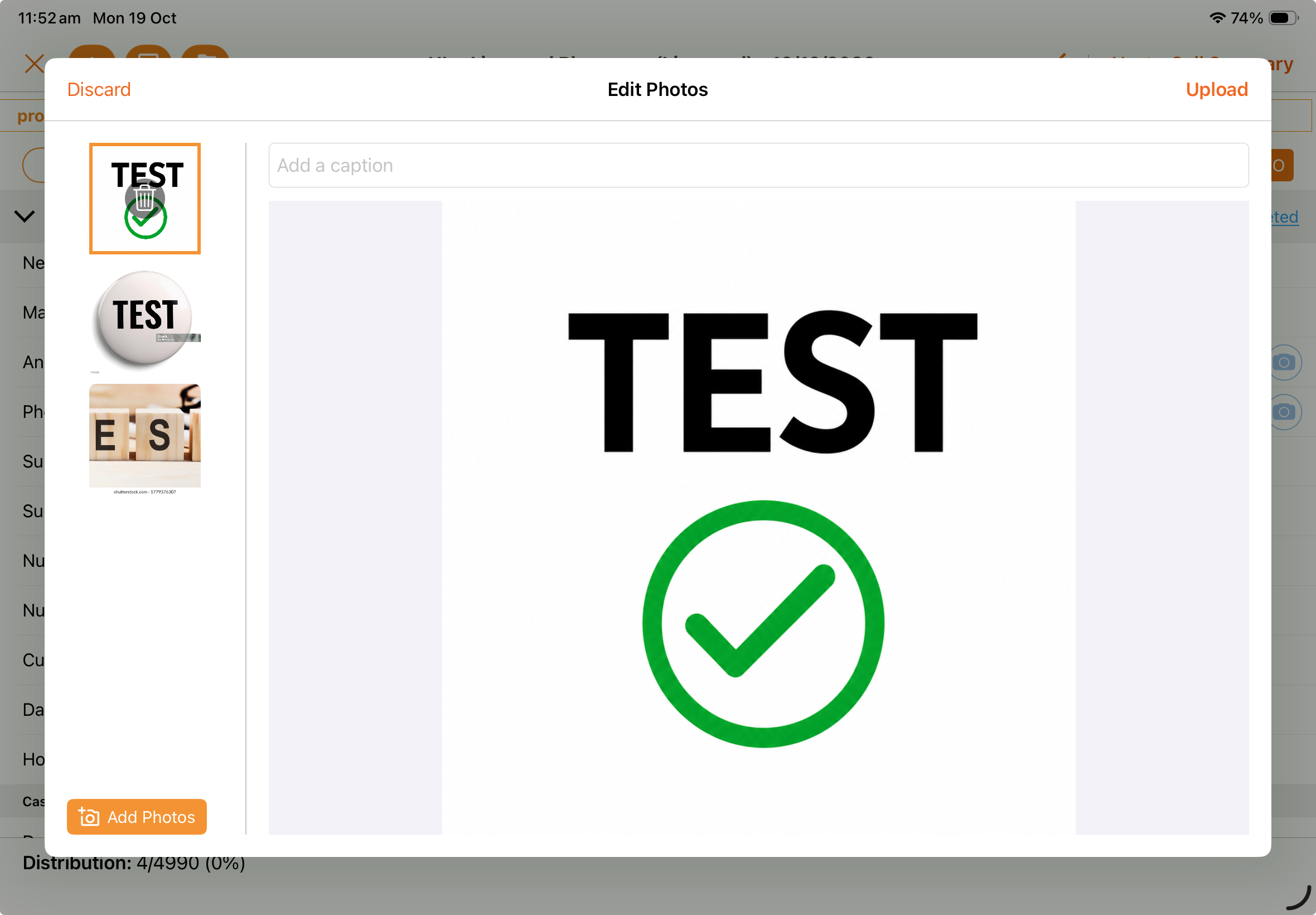
Figure 1: Edit Photos on the iPad. Add several photos with Add Photos, then type a caption for each one at the top.
 Figure 2: Call Summary on the iPad. A photo answer shows as a View 3 photos link.
View the last generated report (FS9-4123)
The Reports work item on the iPad now remembers the last version of each report you generated, so you can show it again without regenerating it.
- Reports that have been generated show a View Last Generated Report button and a clock icon. Tap the clock to see when it was generated.
- The report opens full screen with the date and time it was generated, and you can save it to your device.
- Once opened, the last generated report is also available when you're offline. Generate Report still needs a connection.
- You can also save the generated report to your device
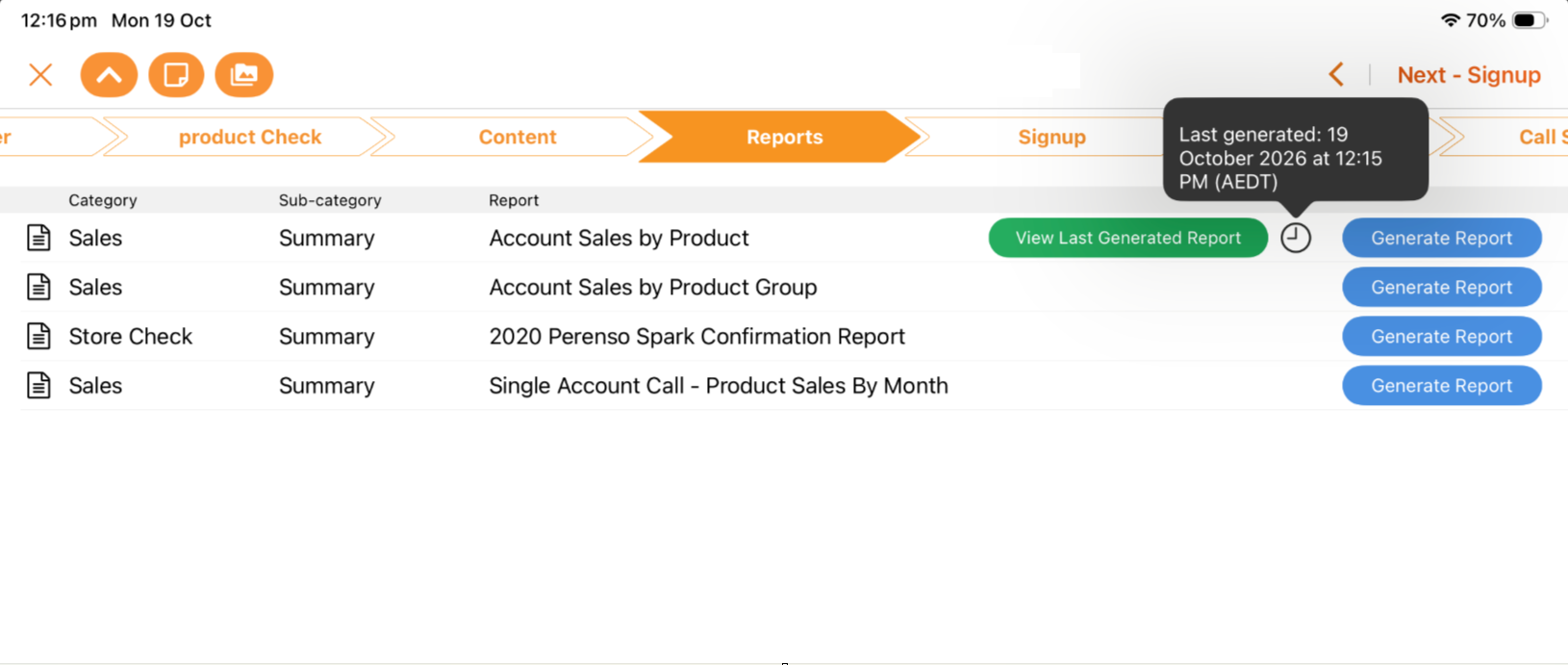
Figure 3: Reports work item on the iPad. View Last Generated Report sits next to Generate Report, and the clock shows when the report was last generated.
Improvements
Faster ways to browse and share content (FS9-4123)
- Opening an album now goes straight to the slideshow, with arrows to move between files. PDFs now show a preview, like images.
- Search sits on the left of the Content page, with Labels and File Type filters next to it. Filters and search now work together.
- Long-press a thumbnail to select several files, then tap Send to Email. Or tap Send to Email to send the file you're viewing.
- The email form shows each attached file as a chip you can remove, and Edit Attachments lets you tick files on or off from the whole album.
- You can now email product content straight from the Order work item.
- Breadcrumbs and a Back button show where you are when viewing content and report photos.
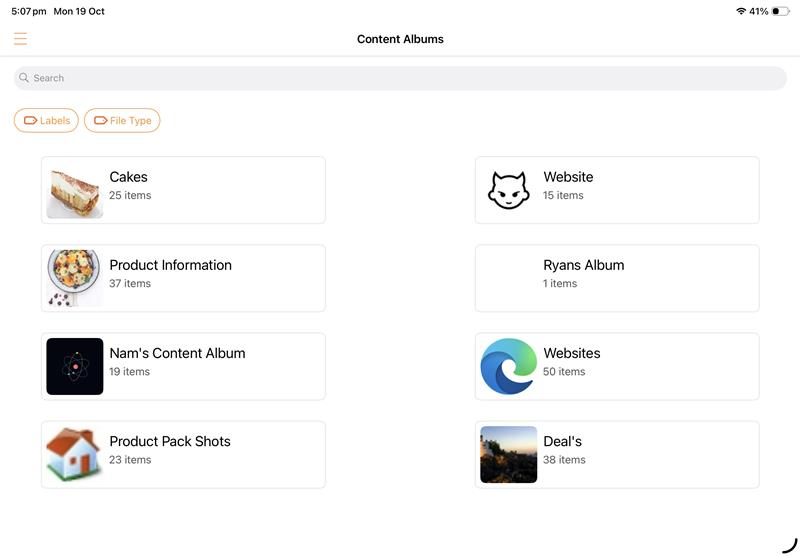
Figure 4: Content Albums on the iPad. Search sits at the top, with the Labels and File Type filters below it.
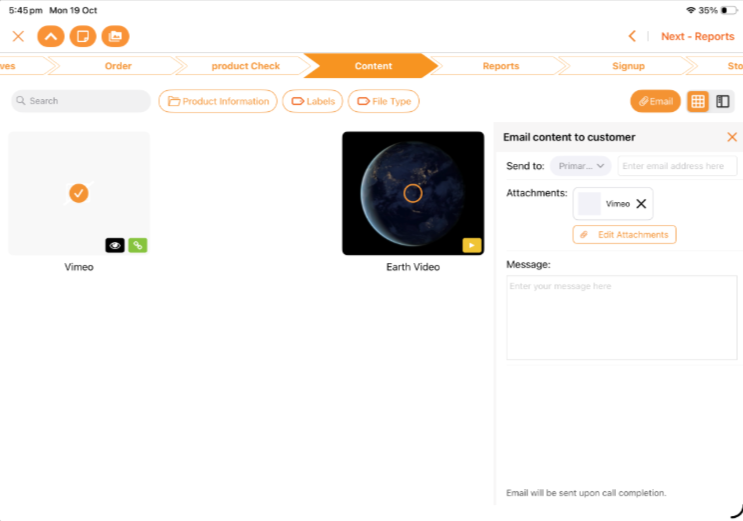 Figure 5: Content work item during a call. The selected file is attached to the Email content to customer form, where you can remove it or use Edit Attachments.
Updated for the latest iOS (FS9-3959)
The app has been updated for the latest Apple software and tested on iOS 26.2, and its connection to Perenso servers has been rebuilt for better reliability.
Bug Fixes
- Fixed connectivity issues with Bluetooth Scanners (FS9-3950)
- Fixed a crash when opening a Store Check work item. (FS9-4032)
- Fixed an issue where a rep would change call's call type/call details via the side panel, it would freeze (FS9-3992)
- Saving a call without notes no longer clears earlier call notes. (FS9-4268)
- Loading trip zones while online no longer overwrites trip zone changes made offline that haven't synced yet. (FS9-4271)
- When ordering offline, the keypad no longer asks you to add a distributor account and now accepts quantities. (FS9-4266)
- The Product Group filter on the Order Groups tab is now sorted correctly. (FS9-4058)